Add db Layer |
  
|
Add db Layer |
|
1.This command is accessible in the File menu > Layers sub-menu with the  button and in the toolbar (Desktop version).
2.On the Layer Manager: tap on the  Add Layer button > and select the Database option in the pop-up menu.
Accessing to the Add db Layer command in the menu
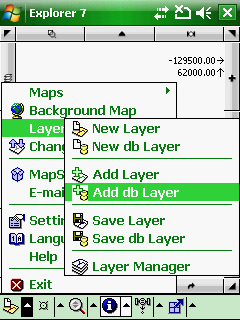
Accessing to the New db Layer command in the Desktop version

Accessing to the New db Layer command in the Layer Manager
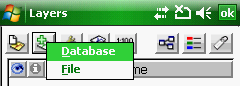
Add db Layer
Opens the Add db Layer panel to add a geodatabase layer to the current map.
Supported geodatabase: DB3 - SQLite version 3
Add db Layer panel
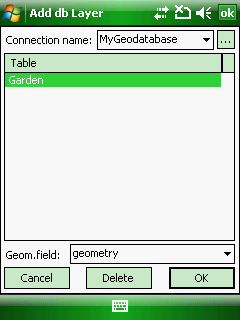
Connection name: Lists the connections in a drop-down list, that can be created on the Database connection dialog box to SQLite DB3 geodatabase files. A connection needs to be selected from the list to display its table(s) in the SQL table list below.
 - Opens the Database connection panel to manage connections with geodatabases
SQL table list: Lists the SQL tables of the geodatabase. Tap on a list item to select an SQL table for deletion.
Geom. field: Select an SQL geometry field to the database layer you want to add to the map view
Cancel - Closes the Add db Layer panel
Delete - Deletes the selected SQL table from the geodatabase
Save - Adds the database layer to the map view from the geodatabase
|
Basic |
Advanced |
Professional |
Availability of the "Add db Layer" command in different editions |
|
|
|
 = new feature